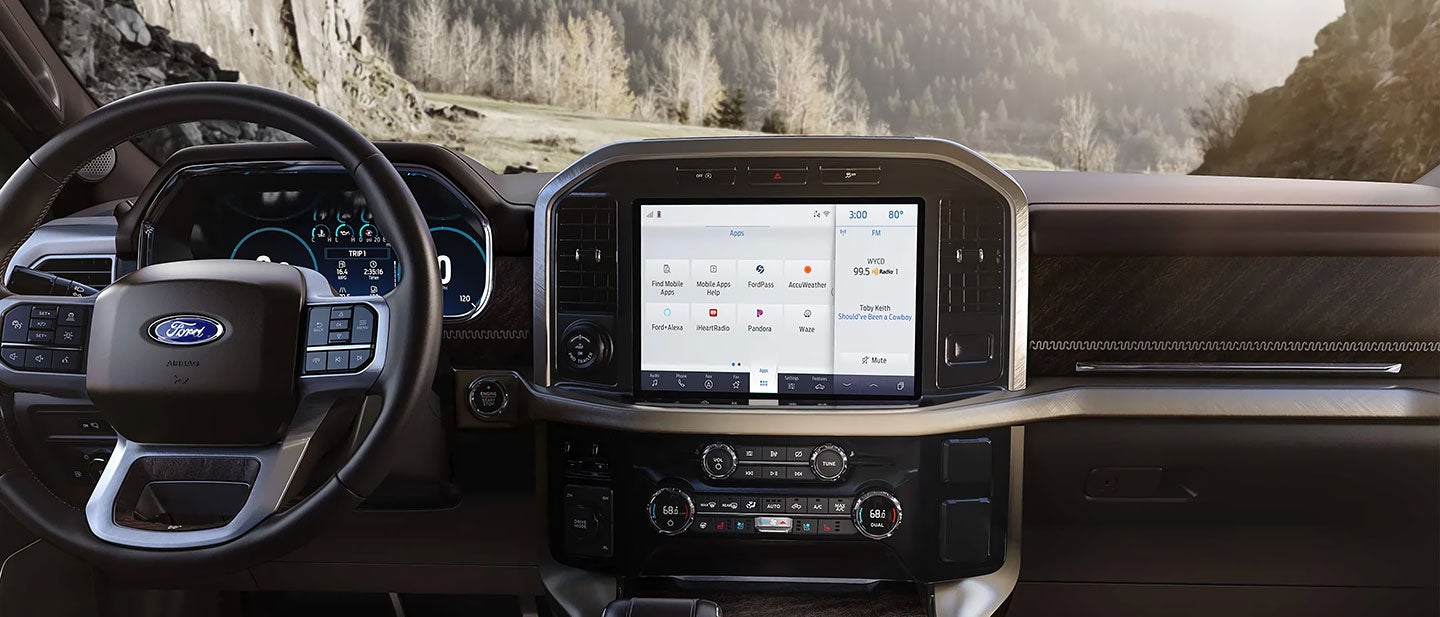

Modern Ford vehicles come loaded with technology to keep you connected, entertained, informed, and safe, with your convenience at the forefront. But it’s not so convenient if you've ever dealt with Ford infotainment freezing or Bluetooth® problems on your drives through New Hudson, Michigan. You know how frustrating it can be when your screen locks up mid-route or your phone suddenly disconnects. The good news is that many of these issues have straightforward fixes you can try on your own before heading in for service. What Causes Ford Infotainment Freezing or Bluetooth® Problems Before diving into solutions, it helps to understand what's actually going on. Ford's SYNC® infotainment system is essentially a computer, and like any computer, it can run into software hiccups. A frozen screen, failed Bluetooth® pairing, or dropped phone connection can result from outdated software, too many paired devices, app conflicts, or simply a system that needs a restart. Bluetooth® issues are especially common when your phone's operating system has recently updated. A new iOS or Android version can sometimes disrupt how your device communicates with the vehicle's system. This is one of the most overlooked causes of Ford infotainment freezing or Bluetooth® problems. Try a Soft Reset First The simplest fix for a frozen SYNC® screen is a soft reset. To do this, press and hold the power button on your infotainment panel for about 10 seconds until the screen goes dark and restarts. On some Ford models, holding both the power button and the forward-skip button simultaneously triggers the reset. This approach won't erase your settings or paired devices. It just clears temporary data that may be causing the freeze. Think of it the same way you'd restart a smartphone that starts acting sluggish. This quick step resolves Ford infotainment freezing or Bluetooth® problems more often than you might expect. Fix Bluetooth® Disconnects and Pairing Failures If your phone keeps dropping its connection or won't pair at all, start by deleting the vehicle from your phone's Bluetooth® settings and then deleting your phone from the SYNC® system as well. Once both sides have been cleared, restart both your phone and the vehicle, then attempt a fresh pairing. It also helps to limit the number of devices saved in SYNC®. The system works best when it isn't juggling too many remembered connections. Keep your paired device list lean, ideally no more than 2 or 3 devices, so the system doesn't struggle to identify which one to prioritize. Ford infotainment freezing or Bluetooth® problems can also stem from the vehicle simply being parked near other strong Bluetooth® signals. Try pairing in a quieter area if you've had repeated failures in a busy parking lot or garage. Check for SYNC® Software Updates Ford regularly releases software updates for the SYNC® system that address known bugs, including those related to Bluetooth® connectivity and screen responsiveness. You can check for available updates by visiting Ford's official website and entering your vehicle's VIN, or you can ask your service advisor to check during your next visit. Some newer Ford vehicles support over-the-air updates, which means the system can update itself automatically when connected to Wi-Fi®. If yours doesn't, updates can often be downloaded to a USB drive and installed manually, a straightforward process outlined in your owner's manual. Staying current with SYNC® software is one of the most effective ways to prevent Ford infotainment freezing or Bluetooth® problems from recurring. When to Bring It In for Service If you've tried the soft reset, re-paired your devices, and updated your software but the problems keep coming back, it may be time to have a technician take a closer look. Persistent freezing can sometimes point to deeper hardware concerns, such as a failing SYNC® module or a wiring issue that isn't visible to the driver. Drivers in New Hudson, Michigan, don't have to tackle these issues alone. A qualified Ford service team, like ours at Hines Park Ford, can run a full diagnostic on your infotainment system and identify whether a software fix or a hardware repair is needed. Visit Hines Park Ford to schedule a service appointment and get your connected drive back on track.